Authenticity Verification
Authenticity Verification consists of two technologies: replay attack detection and audio manipulation detection. These technologies aim to identify if a recording has been wronged by manipulation.
This page explains how to use Phonexia Authenticity Verification in our web application. If you want to dive deeper into the inner workings of this technology, check out our detailed technical documentation.
Please note that Audio Manipulation Detection and Replay Attack Detection are experimental features. It is under development and may change in the future.
Uploading files
If you use Authenticity Verification in the virtual appliance, you can upload your own files or create recordings with the built-in tool. If you don't have your own files, you can use the provided Phonexia example recordings to explore how the technology works.
In the demo version, only example recordings are available, as uploading files and recording are disabled.
If you use Phonexia examples, they will be processed by both replay attack and audio manipulation detection.
Results
After uploading your recordings, they will appear in the left panel.
Leaving the page for an extended period while awaiting the results may interrupt the process. If this happens, you will need to restart the audio processing.
Once processing is complete, the complete results for each technology will be displayed in the right panel.
If a replay attack is detected, a warning icon appears alongside the message “likely replayed.” Viewing the details shows a scale ranging from -3.5 to 0.5. Positive (red) values suggest the recording may be a replay from another source, while negative (green) values indicate authenticity.
The displayed ranges are restricted in the graphical interface to cover the most likely results for recordings. Therefore, some results may occasionally fall outside this range in the exported file.
If audio manipulation is identified, the number of suspicious events is displayed. By clicking “details”, the user can view all suspicious events directly on a waveform, alongside their timestamps and scores. The higher the score, the more significant or relevant the event. A play icon lets the user replay each segment individually.
Export formats
Once your results are ready, you can export them in a range of formats.
CSV and XLSX
If you choose CSV or XLSX and more than one technology was used to process the recording, multiple files will be exported — one for each technology. Each export file is automatically named after the corresponding audio file and the technology used to produce the result.
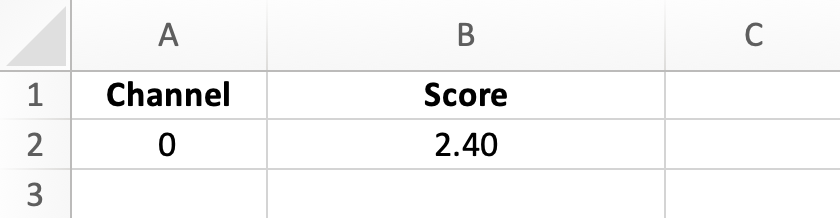
Replay attack detection results files include the channel number and the score.
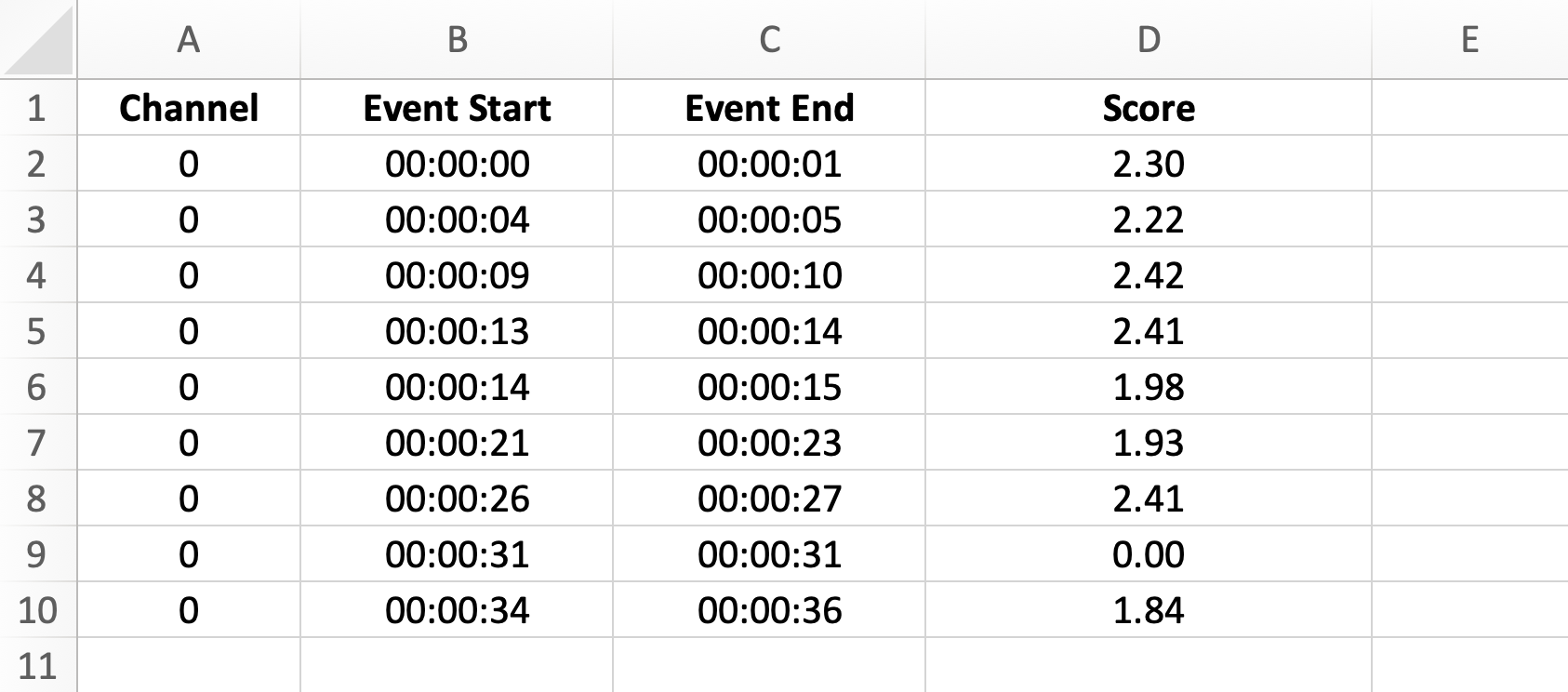
Audio manipulation detection files provide additional details for each suspicious event — including the channel, start time, end time, and respective score.
JSON
On the other hand, the JSON format consolidates the results from both technologies.
{
  "audio_manipulation_detection": {
    "channels": [
      {
        "channel_number": 0,
        "segments": [
          {
            "score": 2.41091251373291,
            "start_time": 23.864999999,
            "end_time": 24.832499999
          },
          {
            "score": 2.1013214588165283,
            "start_time": 25.8,
            "end_time": 26.445
          },
          {
            "score": 1.8215841054916382,
            "start_time": 27.734999999,
            "end_time": 28.379999999
          }
        ]
      }
    ]
  },
  "replay_attack_detection": {
    "channels": [
      {
        "channel_number": 0,
        "score": -3.7237942218780518
      }
    ]
  }
}
The same results can also be exported in bulk as a ZIP file.
All results
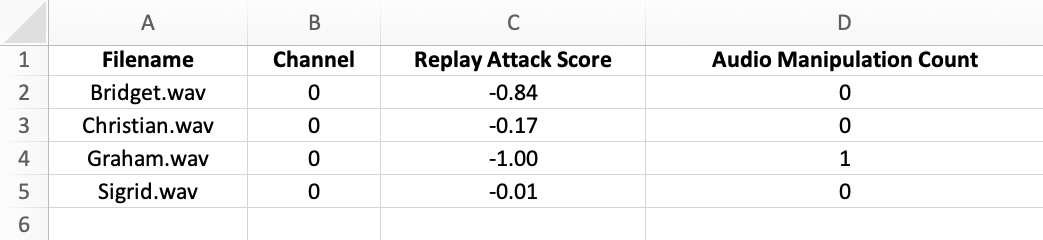
Additionally, users have the option to export a summary file that displays the scores for all the selected recordings. Whether in CSV or XLSX format, the export file displays the replay attack score and the total number of audio manipulation events detected in the selected recordings.